A live class with no interaction feels like a recorded video: students drift off, the chat goes quiet and watch time drops. The quickest fix is a poll. One tap from the student, an instant answer for you, and a reason to keep watching.
YouTube Live has native polls built in, but making them by hand in YouTube Studio during a class is slow. This guide shows the faster way, from your phone, with Polls Patamde.
Why polls work in live classes
- Students stay. A question every few minutes gives viewers a reason not to leave.
- You see who understood. If 70% pick the wrong option, you know what to re-explain right now, not after the exam.
- The algorithm notices. Polls, chat messages and longer watch time are engagement signals that help a live stream get recommended.
Before you start: YouTube's poll limits
Native YouTube Live polls have fixed limits. Plan your questions around them:
| Item | Limit |
|---|---|
| Options per poll | 2 to 4 |
| Question length | Up to 100 characters |
| Each option | 2 to 35 characters |
| Who can publish | The channel owner (you sign in with the channel's Google account) |
Long MCQs? Put the full question on your slide and use the poll for "Q7: A / B / C / D".
Step by step: publishing a poll from your phone
- Install Polls Patamde and sign in with the Google account that owns your channel.
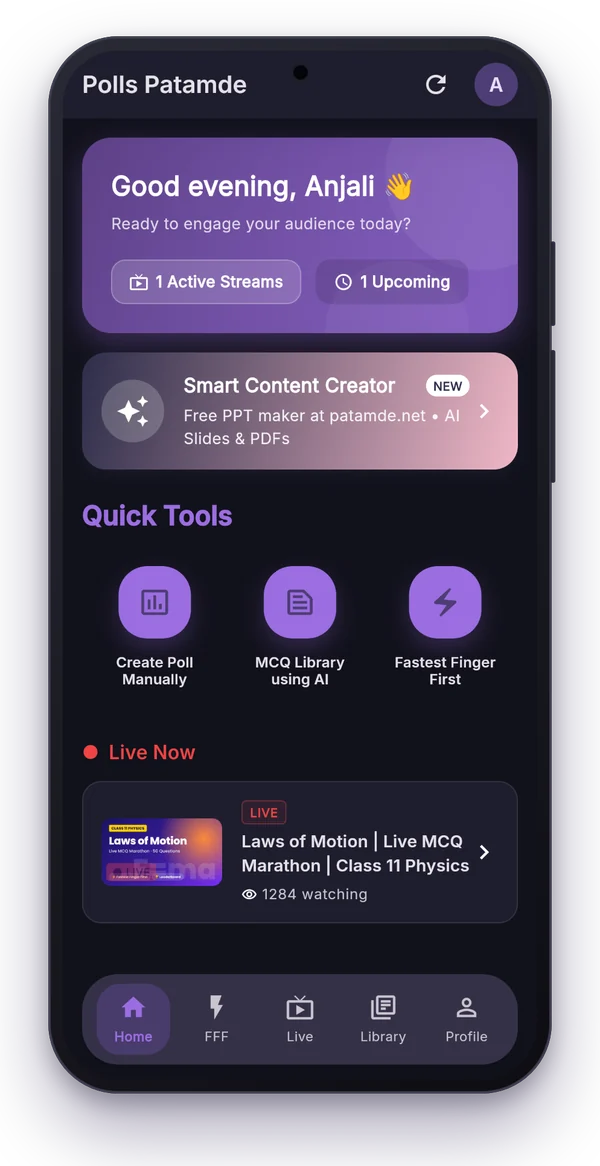
- Start or schedule your stream in YouTube Studio. It appears on the app's Home screen under Live Now or Upcoming.
- Tap Create Poll Manually, type the question and 2 to 4 options.
- Choose a timer: 15, 30, 45, 60, 90 or 120 seconds.
- Publish. The poll shows up in chat like any YouTube poll, closes on its own when the timer ends, and you see the results in the app.
Let polls run themselves: the Auto Poll Sender
Typing questions during class still breaks your flow. Prepare a quiz set once (by hand or from a PDF with AI), then switch on the Auto Poll Sender (Pro plan and above). It publishes the next question every 30 to 120 seconds, so you can keep teaching while the quiz runs in the chat.
Tips that get more students answering
- Announce it. "Poll in 10 seconds, answer in chat!" before you publish.
- Keep it short. 30 seconds is enough for most MCQs; use 60 to 90 for numericals.
- Discuss the result. Read the percentages aloud and explain the most-picked wrong answer.
- Mix in competition. For revision sessions, switch to Fastest Finger First so the fastest correct students get a shout-out.
Ready to try it? The How to Use guide walks through every screen.
Frequently asked questions
Can I create a YouTube Live poll from my phone?
Yes. With Polls Patamde you type or pick a question on your Android phone and publish it as a native YouTube Live poll with a timer, without opening YouTube Studio during class.
How many options can a YouTube Live poll have?
Between 2 and 4 options. The question can be up to 100 characters and each option between 2 and 35 characters.
Can polls run automatically during my class?
Yes. On Pro plans and above, the Auto Poll Sender publishes the next question from a quiz set every 30 to 120 seconds.