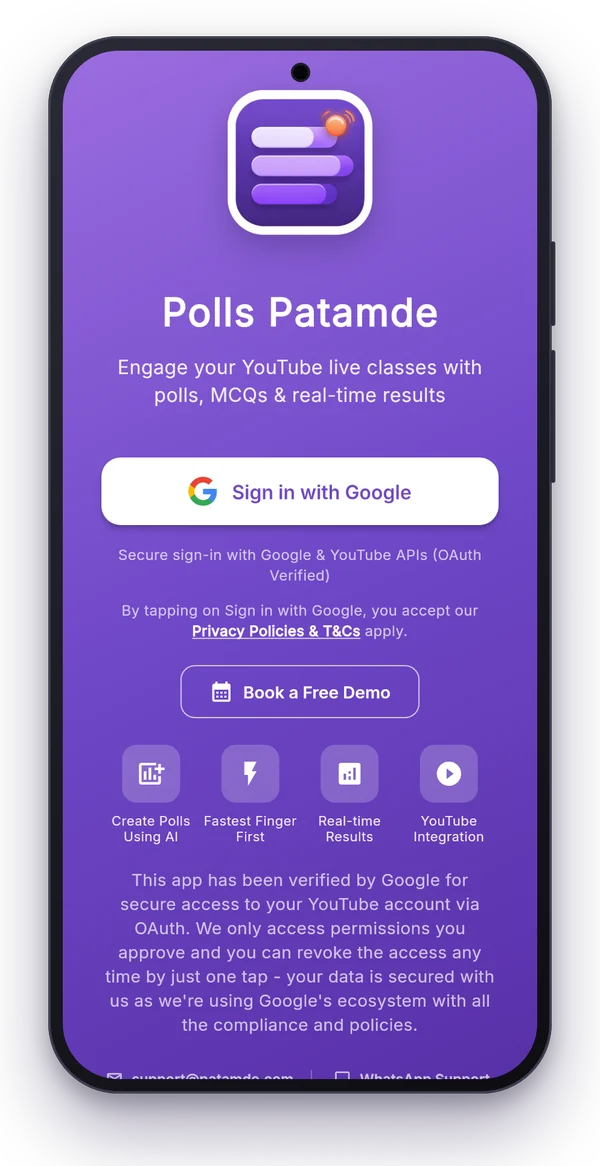
1. Sign in on your phone
Install Polls Patamde from Google Play and open it.
- Tap Sign in with Google.
- Choose the Google account that owns your YouTube channel. Polls can only be published by the channel owner.
- Allow YouTube access when Google asks. The app is verified by Google and only requests the YouTube permissions it needs to read your streams and publish polls.
Your free 7-day trial starts automatically. Next time you open the app you go straight to the Home screen.
2. Find your way around
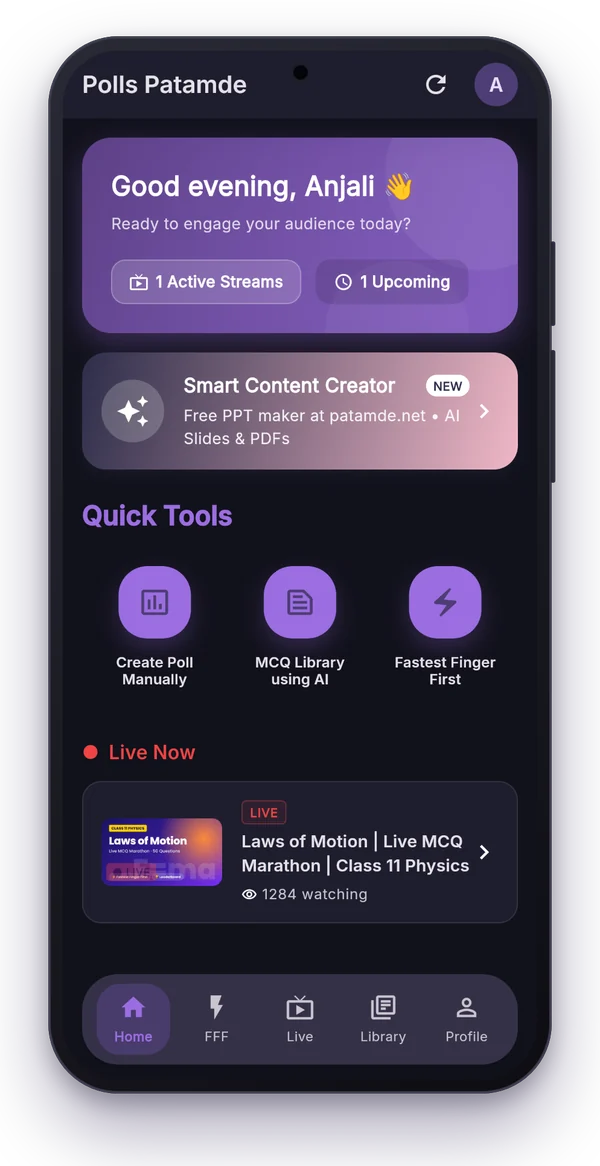
The Home screen shows how many streams are live and upcoming on your channel, plus three Quick Tools:
- Create Poll Manually: type a question and options and publish it as a native YouTube poll.
- MCQ Library using AI: upload a PDF and let AI pull out the questions.
- Fastest Finger First: a timed quiz where viewers answer in chat.
The bottom bar has Home, FFF, Live, Library and Profile. Your plan, linked PCs and support links are under Profile.
No stream listed? Start or schedule one in YouTube Studio, then tap the refresh button at the top.
3. Send a YouTube Live poll
- Open your live or upcoming stream, or tap Create Poll Manually.
- Type the question (up to 100 characters) and 2 to 4 options (each 2 to 35 characters). These limits come from YouTube.
- Pick a timer: 15, 30, 45, 60, 90 or 120 seconds. The poll closes by itself when time runs out.
- Publish. The poll appears in your stream's chat exactly like a poll made in YouTube Studio, and you can see the results in the app.
With a Pro plan or higher, the Auto Poll Sender works through a quiz set for you, sending the next question every 30 to 120 seconds while you teach.
4. Make MCQs from a PDF with AI
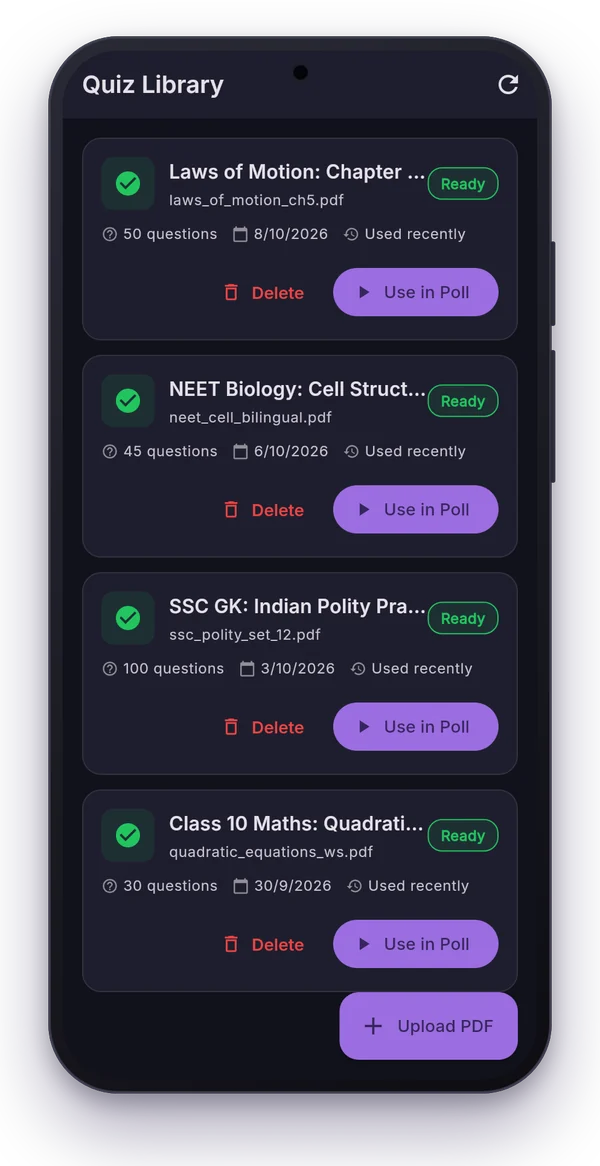
- Tap MCQ Library using AI and upload a PDF: a question bank, a worksheet or a previous year paper.
- Optionally skip pages at the start or end (cover, index, answer pages). Advertisement pages are skipped automatically.
- Google's Gemini AI reads the PDF and extracts each question with its options and correct answer. Hindi, English, Tamil and bilingual papers are supported.
- Review the questions and save them as a quiz set. Use it for polls, the Auto Poll Sender or Fastest Finger First.
PDFs can have up to 200 pages. How many PDFs and questions you can process each month depends on your plan; see pricing.
5. Run Fastest Finger First from your phone
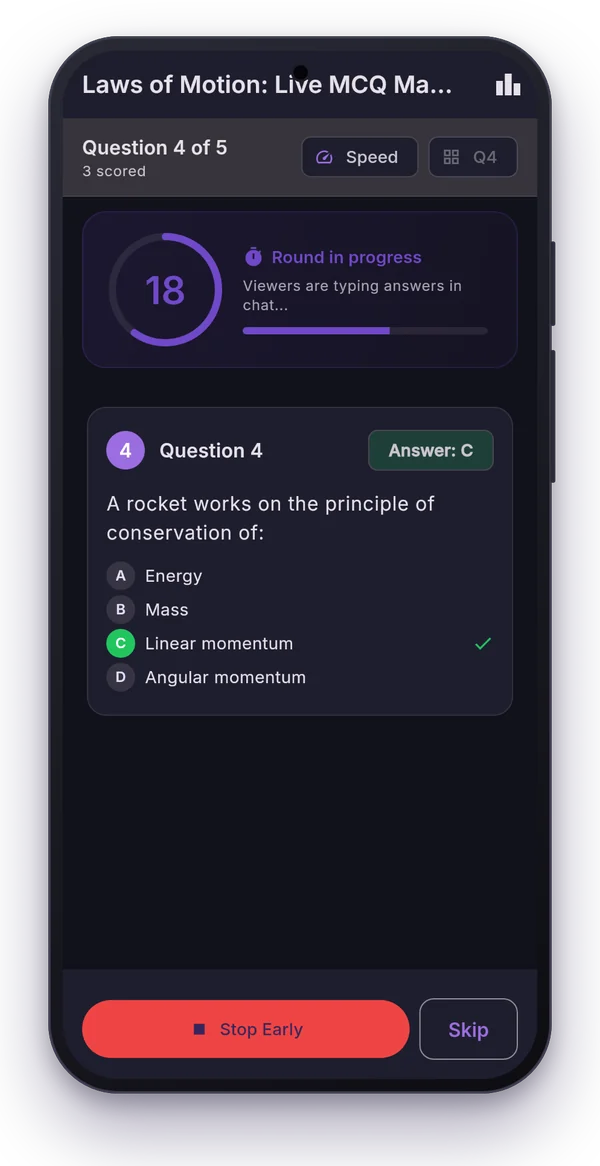
Fastest Finger First (FFF) is a timed quiz played in your live chat. Viewers type a single letter (A, B, C or D) and the fastest correct answers win.
- Open the FFF tab and choose your stream.
- Pick the round timer (15, 30, 45 or 60 seconds) and scoring:
- Simple: 1 point for every correct answer.
- Speed-based: the fastest correct answer gets 10 points, the next 9, and so on (minimum 1).
- Choose what to announce in chat: winners per question, the overall result, or both.
- Start the round. The app posts the start message, reads every answer from chat, and posts TIME UP and the winners. Only each viewer's first answer counts, ranked by the time YouTube received it.
Have the answer key as an image or PDF? The app can read the correct answers from it with AI.
The leaderboard
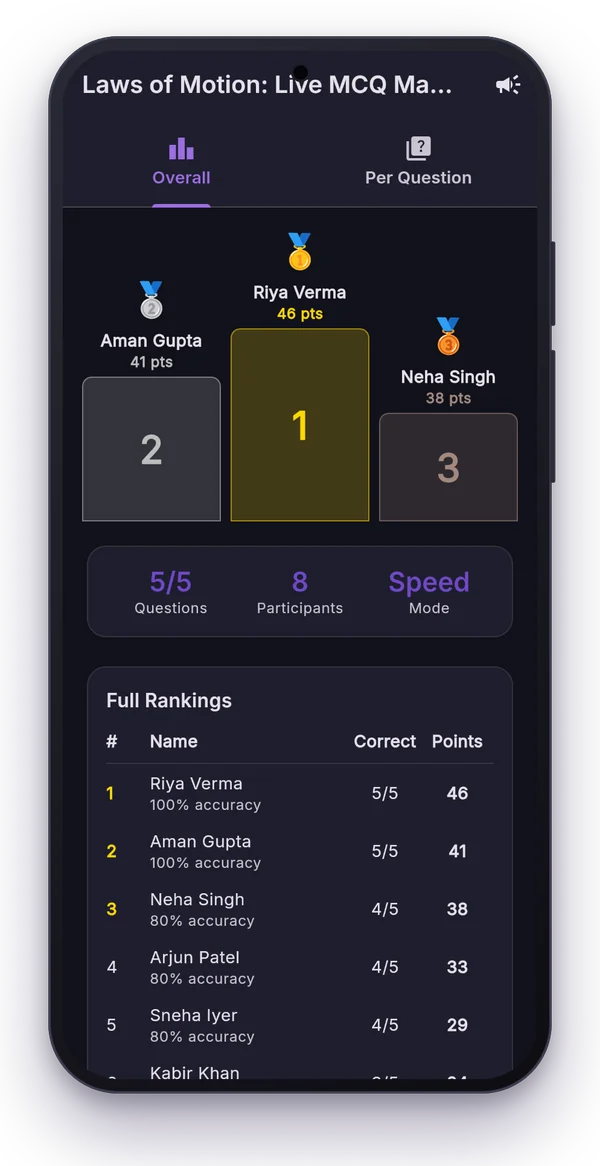
After every round the app ranks viewers by points, then correct answers, then speed, and keeps a podium and full rankings for the whole session. Every session is saved under History, handy for weekly toppers or certificates.
6. Run quizzes from your Windows PC
If you teach from a PC, the Windows app keeps the quiz controls in a small window that floats above your slides, so you never switch apps mid-class. It needs your Android app for pairing and approvals.
6.1 Install and pair
- Download the Windows app and install it (Windows 10 version 1809 or newer).
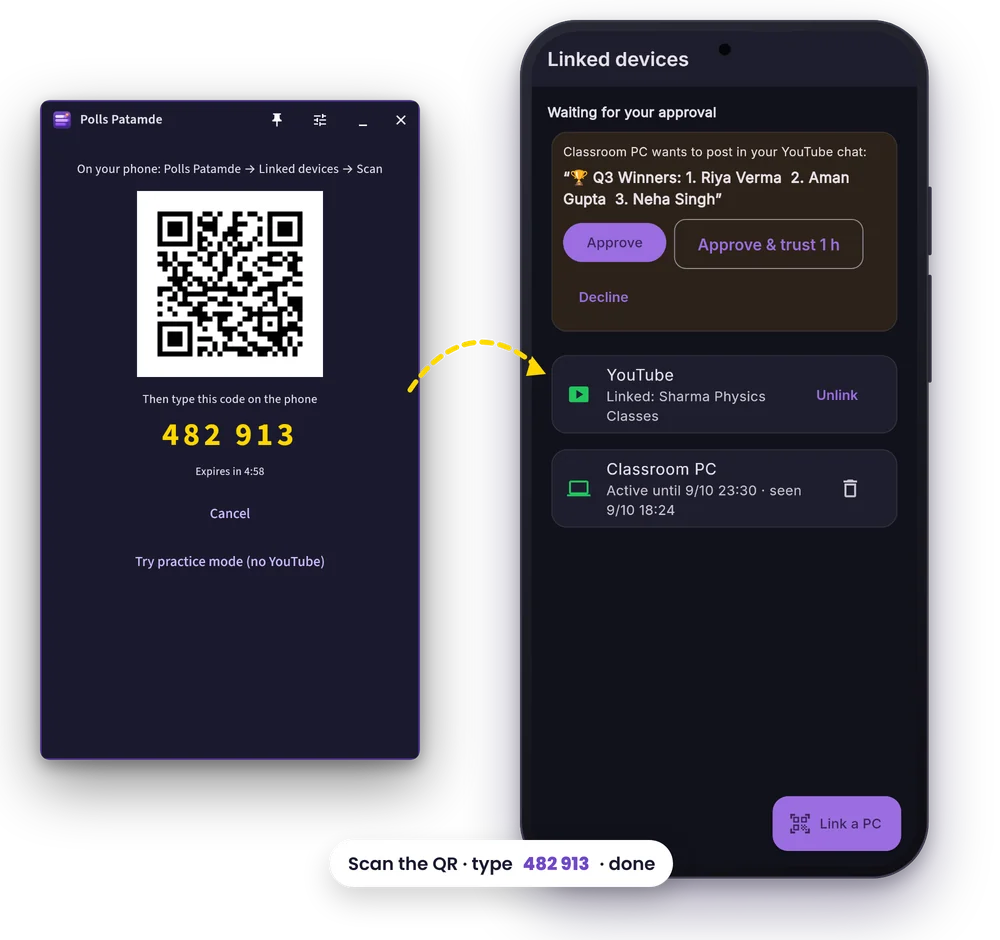
- The PC shows Pair with your phone with a QR code and a 6-digit code.
- On your phone go to Profile → Linked devices → Link a PC, scan the QR code and type the code shown on the PC.
The PC never asks for your Google password. It gets a signed session for up to 8 hours, and you can remove it any time with the bin icon in Linked devices.
6.2 Link YouTube once
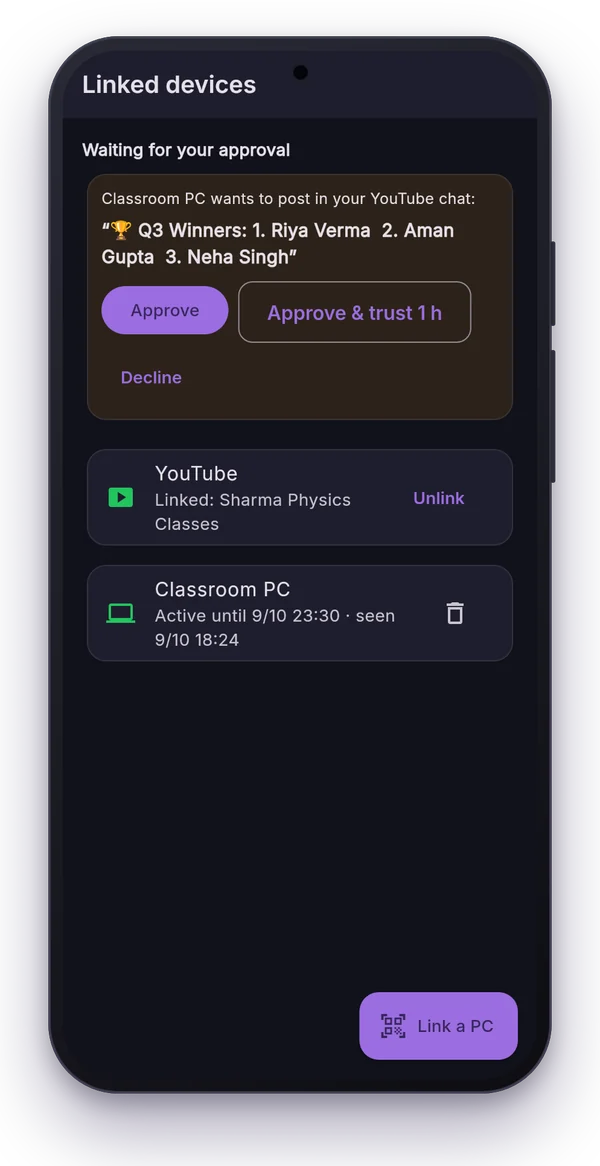
In Linked devices on your phone, tap Link on the YouTube card and choose your channel's Google account. This lets your paired PCs read your live chat and post announcements, with your approval, without the PC ever holding your Google login.
Your paired PC appears below with the time its session ends.
6.3 Choose your live stream
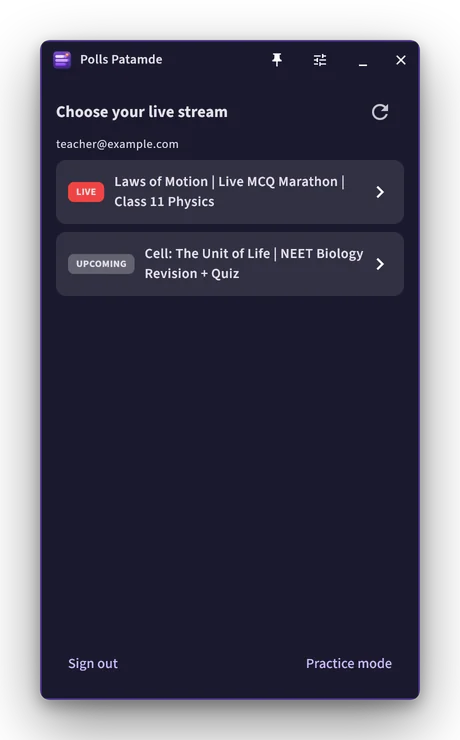
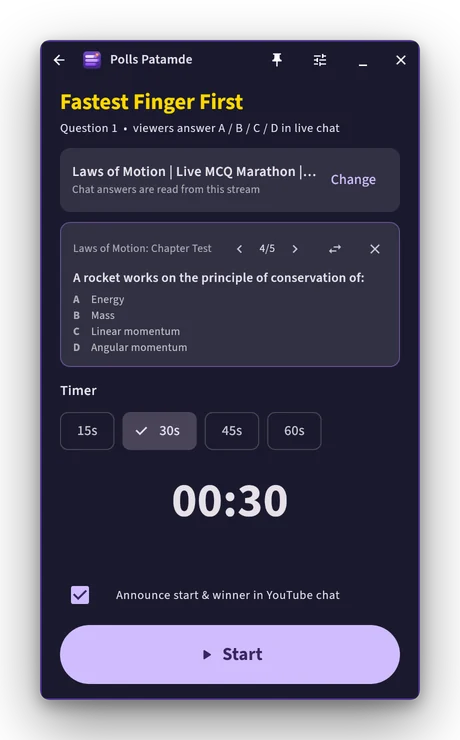
The PC lists your live and upcoming streams under Choose your live stream. Pick one and the quiz panel opens.
If it says "YouTube is not linked", do step 6.2 on your phone and press refresh. If it says no streams were found, start or schedule a stream in YouTube Studio first.
Want to rehearse? Practice mode runs rounds on screen without touching YouTube chat.
6.4 Run a round and approve on your phone
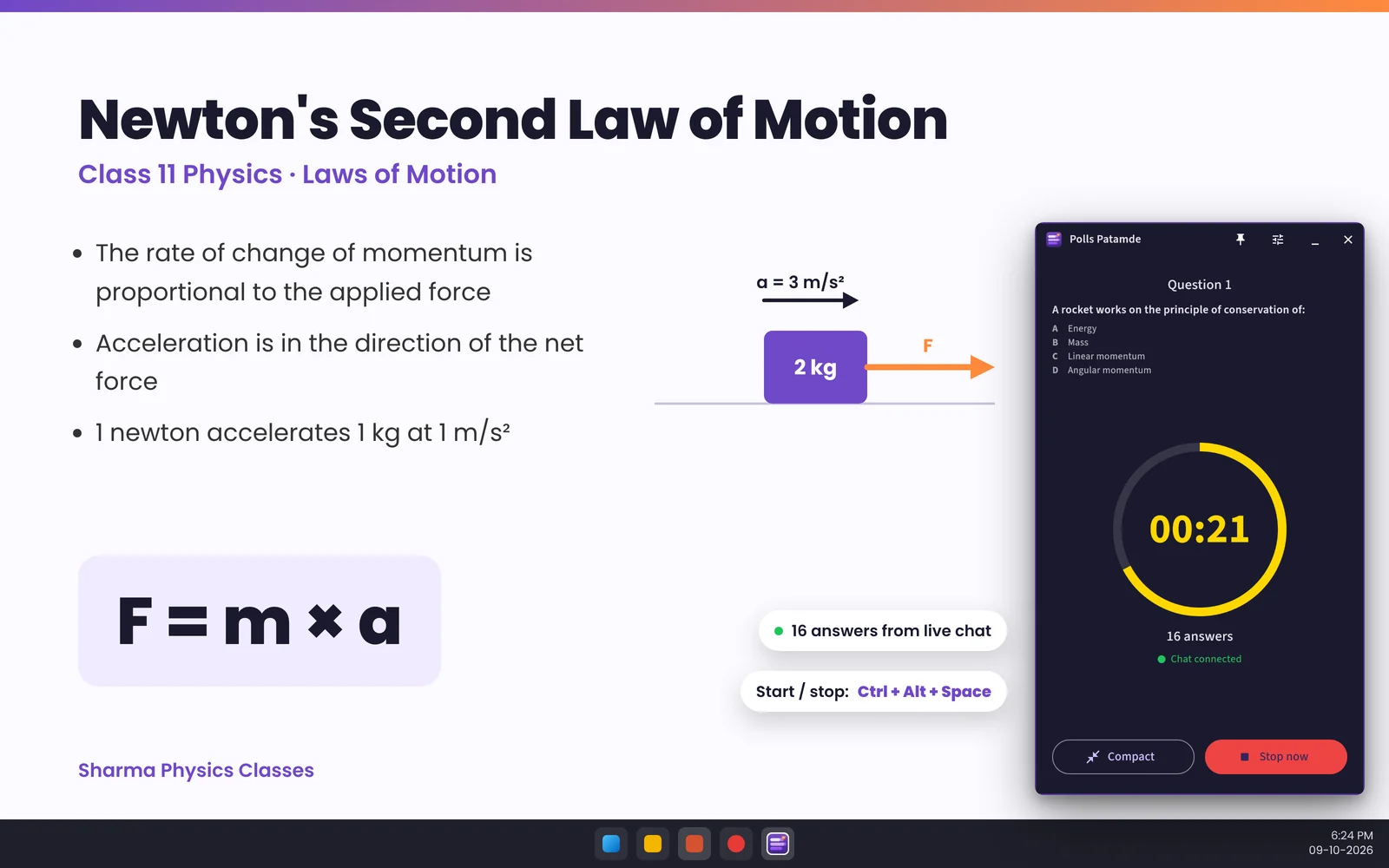
- Press Start (or Ctrl+Alt+Space). Viewers type A / B / C / D in live chat; the panel counts answers live.
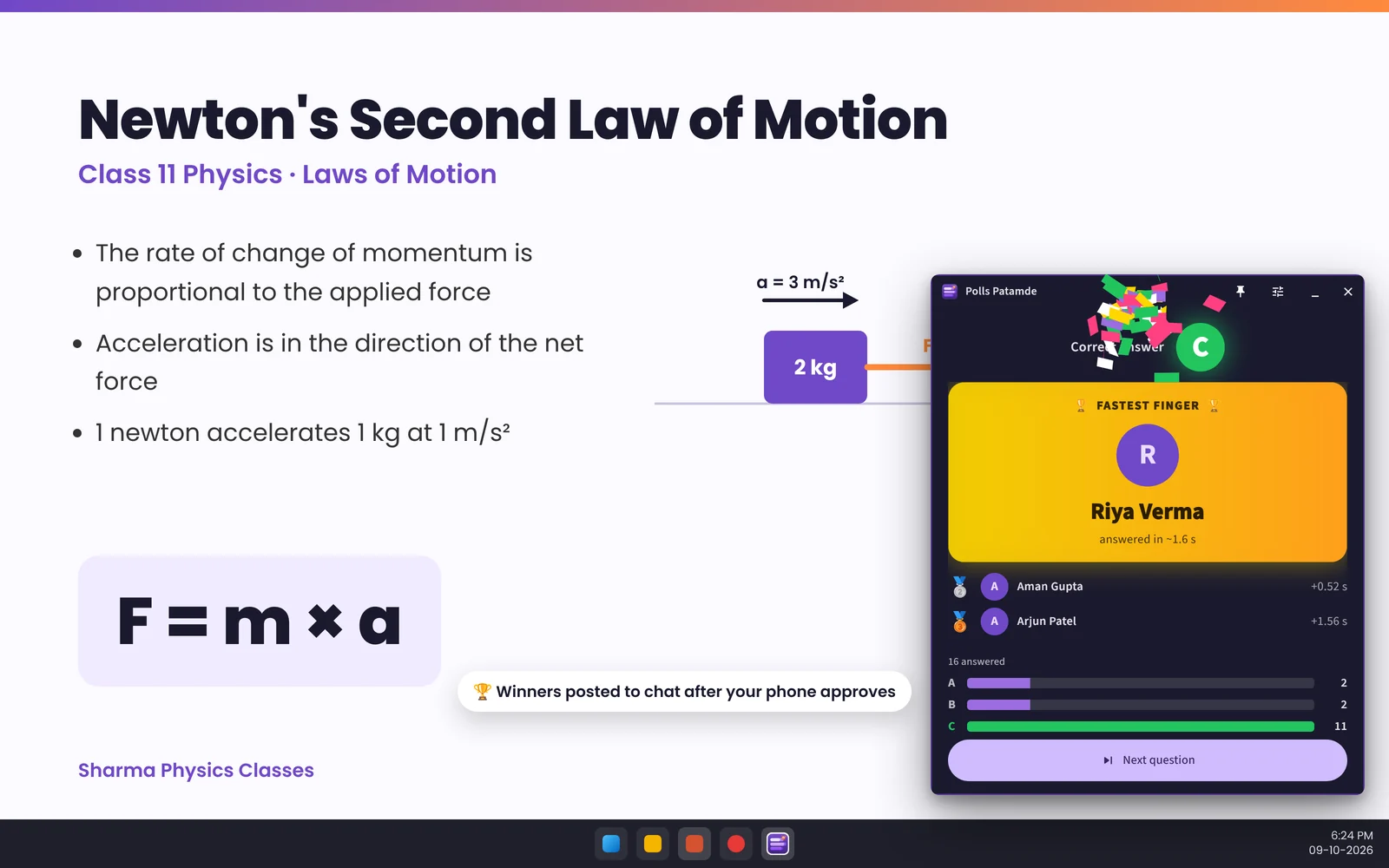
- When time is up, pick which option is correct (Ctrl+Alt+1 to 4). Winners are ranked by speed and shown in a winner reveal.
- When the PC wants to post the start message or winners in your chat, your phone shows a request. Approve with your fingerprint or screen lock.
- Tap Approve & trust 1 h to let that PC post for the next hour without asking again.
The phone posts exactly the text the PC asked for, nothing else. Requests you don't answer expire after 2 minutes.
7. Keyboard shortcuts (Windows)
They work even while PowerPoint or your browser is in front. Change them under Settings → Keyboard shortcuts.
| Shortcut | What it does |
|---|---|
| Ctrl+Alt+Space | Start, stop, next question |
| Ctrl+Alt+1 … 4 | Mark A, B, C or D as the correct answer |
| Ctrl+Alt+P | Show or minimise the window |
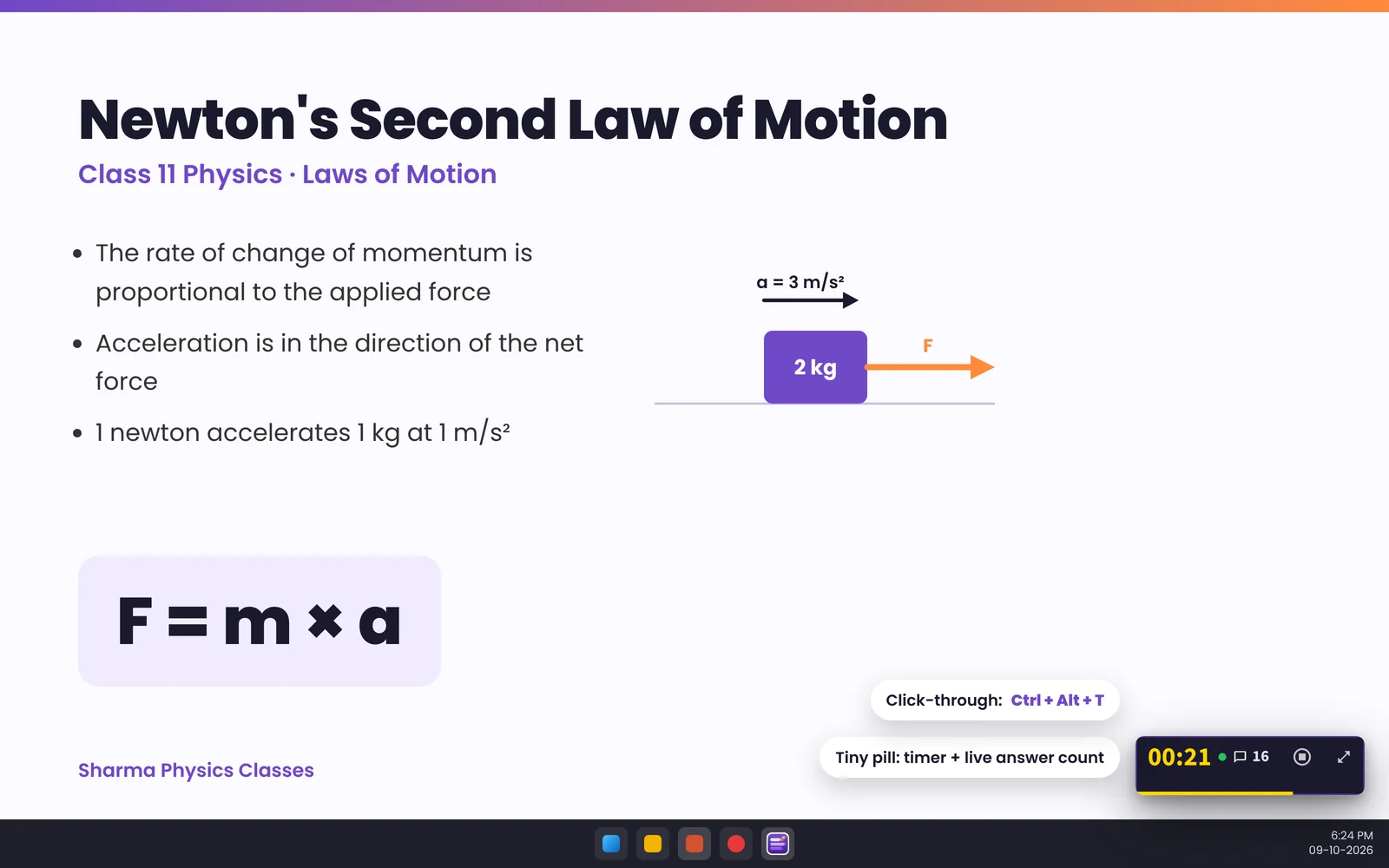
| Ctrl+Alt+T | Click-through on/off (clicks pass through the window to your slides) |
The window has three sizes: a tiny pill with the timer and answer count, the full panel, and a larger reveal for winners. Drag it anywhere; it snaps to the nearest corner and can start with Windows.
Need slides too? patamde.net creates presentations automatically from your topic or chapter, free forever.
Frequently asked questions
My PC says 'YouTube is not linked'. What do I do?
On your phone open Profile, then Linked devices, and tap Link on the YouTube card. Pick the Google account that owns the channel and allow access. Then press refresh on the PC.
The pairing code stopped working.
Codes are valid for 5 minutes and allow 5 attempts. Click Show pairing code on the PC to get a fresh QR code and code.
Why does my phone ask me to approve every chat message?
So nobody can post in your live chat from your PC without you. Tap Approve & trust 1 h on the phone to approve the rest of the class in one go. You can stop trusting the PC at any time from Linked devices.
How long does a PC stay paired?
A pairing session lasts up to 8 hours, about a full teaching day. After that the PC shows a new code to pair again. You can remove a PC any time from Linked devices.
Can I try the Windows app without going live?
Yes. Choose Practice mode on the PC. It runs rounds on screen without reading or posting YouTube chat.
How many options can a YouTube poll have?
YouTube Live polls take 2 to 4 options. The question can be up to 100 characters and each option 2 to 35 characters.